Meet Morphlet: a new format, a little less friction
A practical tour of local conversion, image tools, PDF editing and AI-ready document exports.
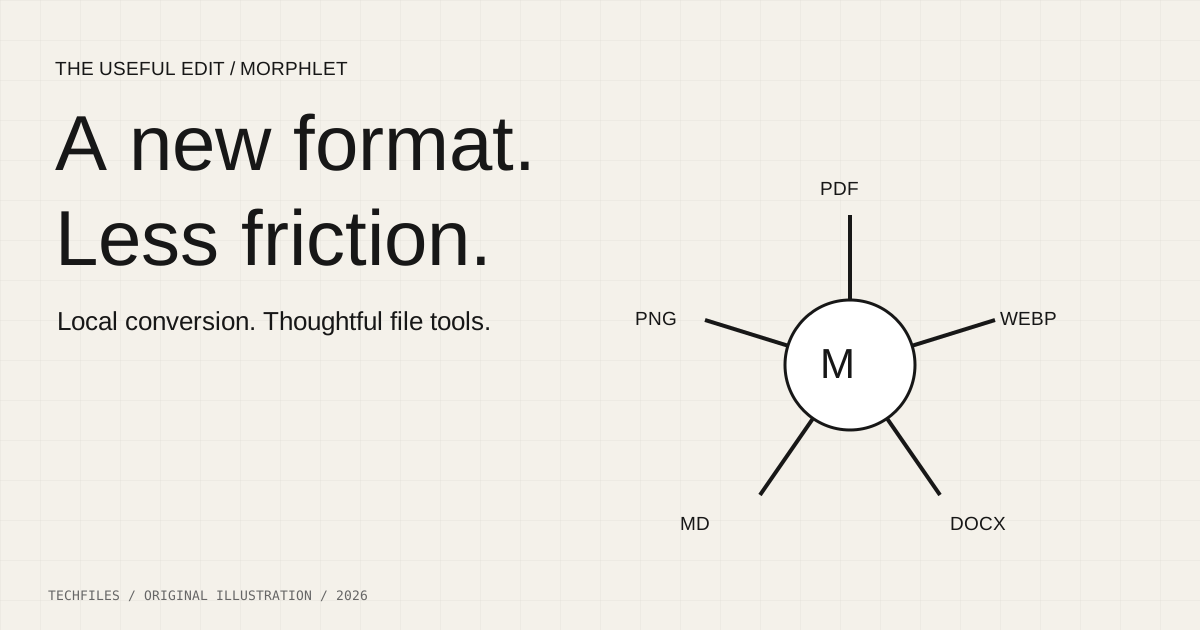
There is a familiar interruption in almost every digital project: the file is right, but the format is wrong. A screenshot needs to become smaller. A PDF needs one correction. A book needs to become a collection of pages and text that another tool can inspect.
Morphlet brings those jobs into a desktop utility: a quick conversion wheel for small tasks and a larger Studio when a file needs more attention. Here is a practical tour of what it does, where it fits, and the limits worth knowing before depending on it.
Start with the official download
Get the package for your operating system and processor from the project's GitHub releases. Morphlet provides macOS, Windows and Linux builds. Open the menu-bar or tray icon, then choose files or open Morphlet Studio. An empty desktop after launch can be normal: the utility runs in the background.
Download Morphlet from the official releases
The project documents unsigned Windows installers and ad-hoc-signed, unnotarized macOS packages. Read its installation notes and verify the official download before using it. This article does not ask you to turn off operating-system security protections.
Your first useful conversion
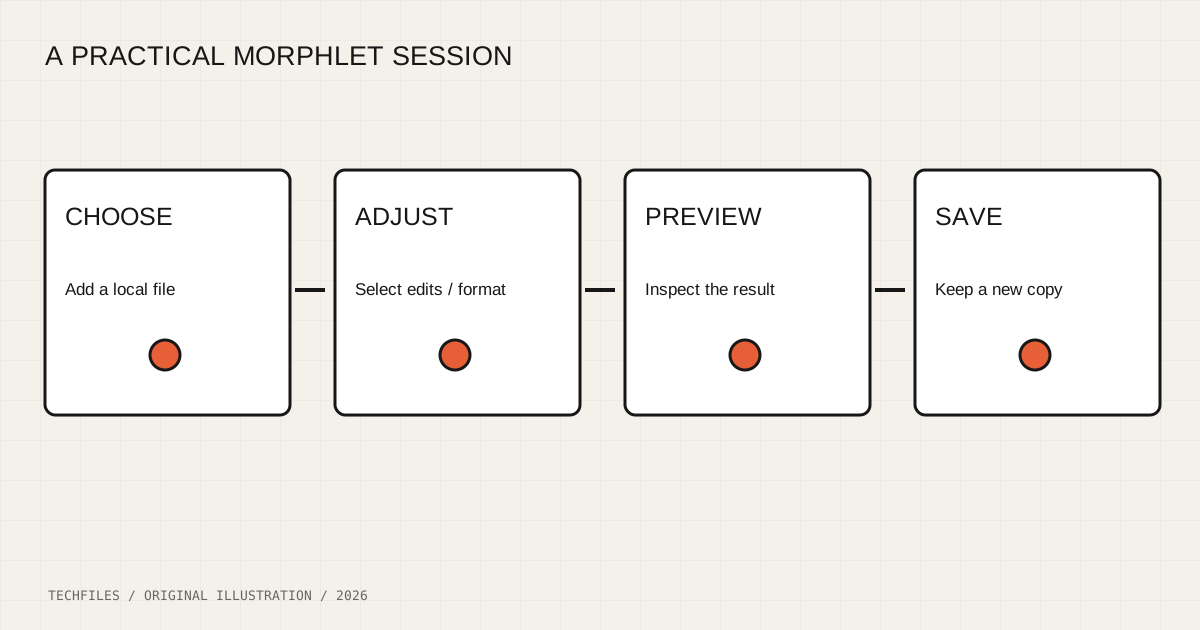
Start with a copy of an ordinary screenshot. Choose files from the tray menu, select a supported image, and choose a compatible output such as WebP. Inspect the preview, reveal the saved result and check its dimensions and appearance in the app where you intend to use it.
Morphlet creates new output files and uses numbered names to avoid replacing existing outputs. That is useful breathing room for experiments, but it is still worth comparing the result with the original before deleting anything yourself.
Use the wheel for one small job
The wheel keeps format selection close to the file. Its choices support pointer interaction and keyboard navigation; Escape dismisses it. Use the sound control if you prefer a quieter workspace, and the system reduced-motion preference for less decorative movement.
File-manager shortcuts vary by platform and configuration. On macOS the project supports Finder selection capture; Windows provides Explorer integration. The README's newer quick-tools section distinguishes conversion and editing modifiers, while earlier instructions describe an older default. Check Studio Settings for the keys in your installed build instead of assuming one fixed shortcut.
On GNOME, the installed file-manager actions offer a more dependable entry point than a promised global modifier shortcut. On Wayland, use the floating drop target or add files in Studio when global capture is unavailable.
Give images a cleaner destination
Crop and edit is useful when the target shape matters as much as the file extension. Select one image, open the controls, choose a crop or enter exact coordinates, and set a suitable output width. You can also mirror or flip the image and adjust encoder quality where the selected format supports it.
A simple publication workflow is to crop a screenshot to remove irrelevant desktop space, choose an appropriate width, convert, then inspect small text at its actual display size. More compression is not automatically a better result: a lighter image that makes labels unreadable has failed the task.
The quick tools also include background frames and solid-color background removal. That removal is color-based, not AI subject segmentation. It is suited to controlled, plain backgrounds; do not expect it to separate hair or translucent objects from a complex scene.
Open Studio when the job becomes a queue
Studio gives you a file sidebar, larger previews, output-folder selection and individual settings. It can manage a queue of up to 100 files, including mixed output choices. A session results list helps you find what completed and what needs attention.
The queue and its settings are held in memory for the current session. It is not a durable job service that survives every restart. Large conversions also run sequentially in the main process, so start with a small representative batch before handing it a large archive.
A practical PDF-editing session
Add a PDF in Studio, select it and choose Edit PDF. Begin with an ordinary, unprotected document containing selectable text. Choose a page, select a supported text region, edit its replacement in the properties panel and save a copy.
The editor can also add text and images, annotate, organize pages, merge ordinary PDFs and fill supported AcroForm fields. Embedded-image editing handles selected page-level raster placements; not every PDF image or text layout can be edited. Scanned pages, complex artwork and unusual fonts may require a different workflow.
Use a test copy to confirm that the exported document still opens correctly and that links, forms and page order behave as expected. Removing visible content is not a secure-redaction workflow: source data may remain in the file. A drawn signature is an image or drawing, not a cryptographically verified digital signature.
Prepare a PDF book for an AI workflow
Morphlet's AI-ready export can gather page images, extracted text, Markdown, tables and a source manifest into a ZIP. Page ranges let you focus on the portion you actually need. OCR options are local, but depend on the available OCR setup and the quality of the scanned pages.
This is document preparation, not a guarantee that the output is complete or correct. Check a difficult page with columns, a table and a diagram. Confirm the extracted text against the image. Preserve the manifest and page references so a later answer can be traced back to the source.
The conversion happens locally according to the project documentation. If you subsequently upload the bundle to an external AI service, that is a separate data-sharing decision; the local preparation step does not make the later upload private.
Combine images without promising editable text
Select multiple images to combine them into a PDF or a Word document, then arrange their order before saving. Each image gets its own page. In the Word output, those pages remain images: the workflow does not turn screenshot text into an editable document.
This is a useful distinction for receipts, scanned sketches and illustrated instructions. If editability matters, test OCR separately and review the result rather than assuming a .docx extension has solved the problem.
Where it earns its place
Morphlet is most interesting as an interruption reducer. It lets you stay near the work while handling the small format decisions that otherwise scatter across browser tabs and heavyweight editors. The wheel handles a quick change; Studio gives the more complicated document a workspace.
Its documented limits matter as much as its feature list: platform integrations vary, not all PDF content is editable, session queues are temporary and conversion accuracy needs review. Try it on a small real task, inspect the result, and keep the workflow that earns its place.
Editorial disclosure and sources
Morphlet is created by Mayank Kumar Jha, who is also associated with this Techfiles publication. This is a product walkthrough based on its repository documentation, not an independent comparative test or a claim that every feature has been tested on every platform.
Feature review: 27 October 2026. Repository README revision: 0495ca83e7cdbf1158c4aac3768cc091d3411a38. Illustrations are original Techfiles diagrams, not product screenshots. Interface wording and shortcuts may change between releases.