Introduction to Git: make changes, keep the story
An illustrated field guide, a working exercise, and a practice pack you can keep.
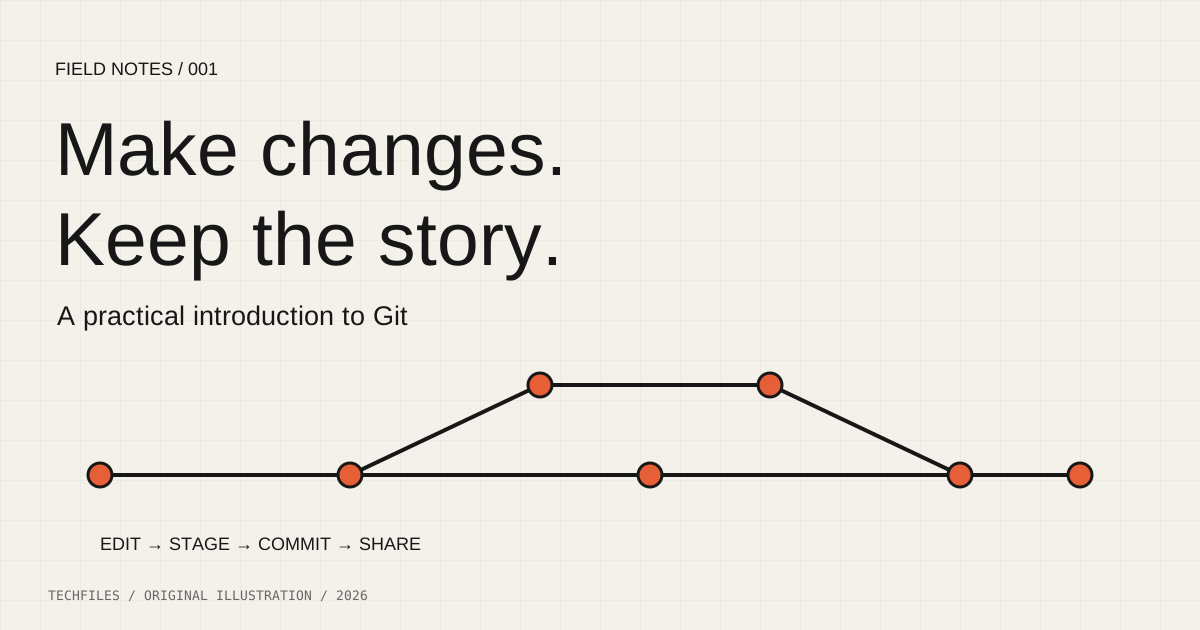
Git gives a project a memory. Instead of keeping folders named final, final-v2 and final-really-final, you record meaningful snapshots and explain why each change happened. This field guide takes you from an empty folder to a small, reviewable history.
You will learn to inspect changes, stage deliberately, commit, work on a branch, merge, and share with a remote. Allow about 35 minutes for the exercise. Use Git 2.23 or newer for the switch and restore commands. The examples use a POSIX shell: Terminal on macOS/Linux or Git Bash on Windows.
1. Git is not GitHub
Git is the version-control program on your computer. GitHub, GitLab and other hosts provide places to share Git repositories and discuss changes. You can make commits without a hosting account or an internet connection. A local commit is not an off-device backup; push to a trusted remote when you need another copy.
A repository contains project history and metadata in its .git directory. Do not delete that directory to tidy a project. Do not edit its internal files by hand while learning.
2. Understand the three places
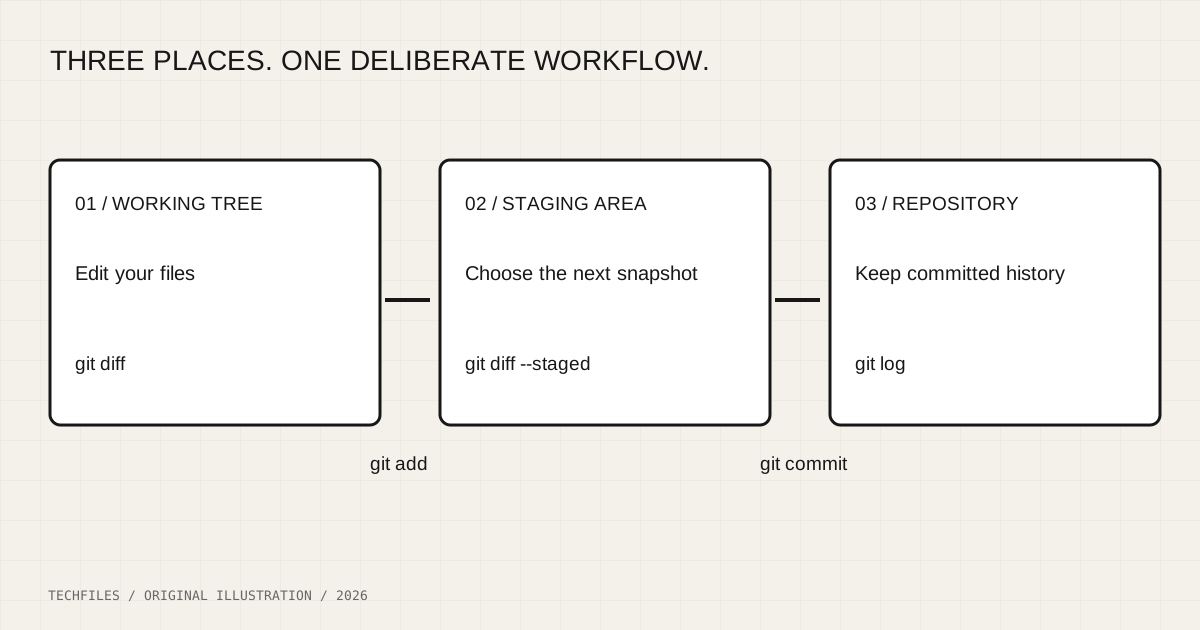
The working tree contains the files you edit. The staging area describes the next snapshot. The repository keeps committed history. Run git add after making the changes you intend to include; edits made after staging are not automatically part of that staged snapshot.
Think of staging as packing a small parcel. Review what is inside before sealing it. A commit should tell one useful story: add a setup guide, fix a navigation bug, or explain a calculation.
3. Set up your identity
Install Git from its official site, then check your version. Your name and email become part of commit metadata. Use the email you intend to publish, or your hosting provider's private commit email.
git --version
git config --global user.name "Your Name"
git config --global user.email "your-commit-email@example.com"
The values above are examples: replace them. To set identity for only one repository, run git config without --global from inside that project.
4. Your first repository
Make a new practice folder so you can experiment without touching an existing project. Each command below is a separate step; read the output before moving on.
mkdir git-field-notes
cd git-field-notes
git init -b main
printf '# My Git field notes\n' > README.md
git status
README.md should be untracked. Track it, review the staged snapshot, and record it:
git add README.md
git diff --staged
git commit -m "Add a README for the practice project"
git log --oneline
Checkpoint: git status should report a clean working tree. The short identifier in git log is a commit ID; yours will differ from anyone else's. Git is recording the snapshot, its metadata and its ancestry, not a numbered copy of your whole folder.
5. Make a second, deliberate change
Add a learning goal, inspect it, then stage it. git diff shows unstaged changes; git diff --staged shows the changes already selected for the next commit.
printf '\nGoal: make small, explainable commits.\n' >> README.md
git diff
git add README.md
git diff --staged
git commit -m "Describe the learning goal"
git log --oneline --graph --all
Try editing README.md again after git add but before committing. git status can show the same file as both staged and unstaged. The staged version is what the next commit records. Run git add again only if you also want the newer edit included.
6. Branch without making another project folder
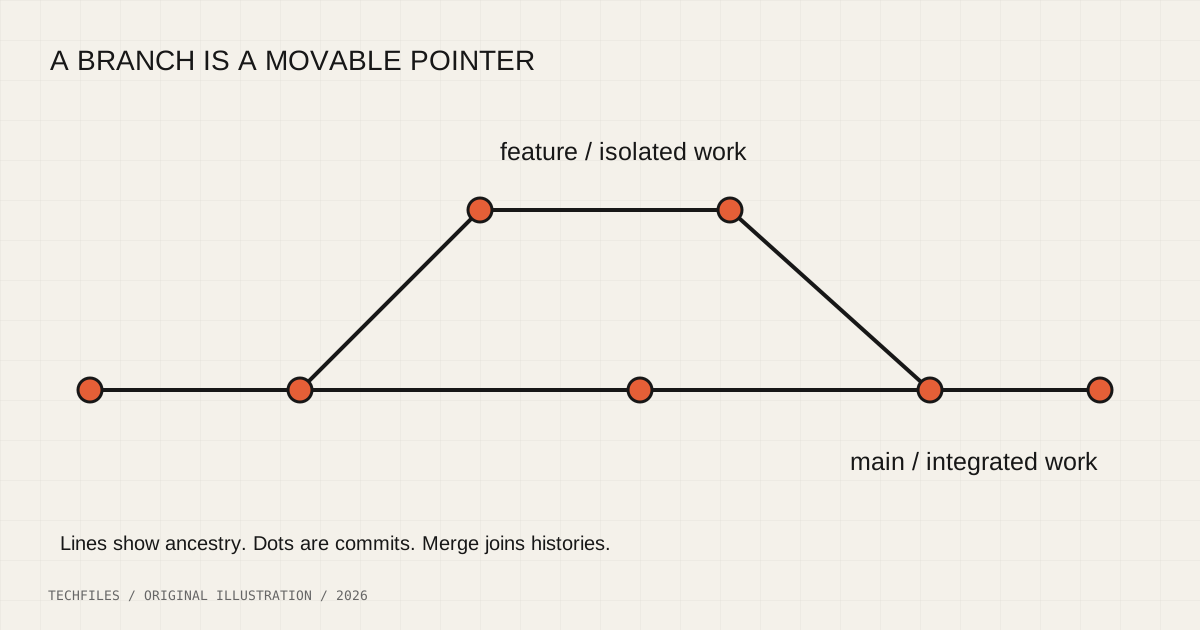
A branch is a name pointing to a commit. Create one for a focused experiment. Switching branches updates your working files; commit or otherwise preserve unfinished work before switching when Git requires it.
git switch -c notes/branching
printf '\nA branch lets me develop an idea separately.\n' >> README.md
git add README.md
git commit -m "Explain the purpose of a branch"
git switch main
git merge notes/branching
This exercise normally produces a fast-forward: main can simply move to the newer commit. A merge commit is needed when histories have diverged and are joined. Do not assume every merge creates a new commit.
7. Resolve a conflict by understanding the text
A conflict means Git needs a decision about how changes should fit together. It is not proof that the repository is broken. Open the conflicting file, read the surrounding context and the marked alternatives, and edit it into the result you actually want.
<<<<<<< HEAD
A version on the current branch
=======
A competing version from the branch being merged
>>>>>>> other-branch
Remove the markers after choosing or combining the text. Test the result, stage the resolved file, and complete the merge. During an unresolved merge, git merge --abort can return to the pre-merge state; keep the starting working tree clean so recovery is predictable.
8. Keep generated files and secrets out
A .gitignore file describes intentionally untracked files. It does not remove a file already tracked, and it does not erase a secret from earlier history. Review git status before each commit, particularly before using broad staging commands.
node_modules/
dist/
.env
.env.local
*.log
Commit a separate .env.example containing names and harmless examples. If a real credential reaches a repository, revoke or rotate it with the service first, then follow your team's history-cleanup process. Deleting the visible line alone is insufficient.
9. Share when you are ready
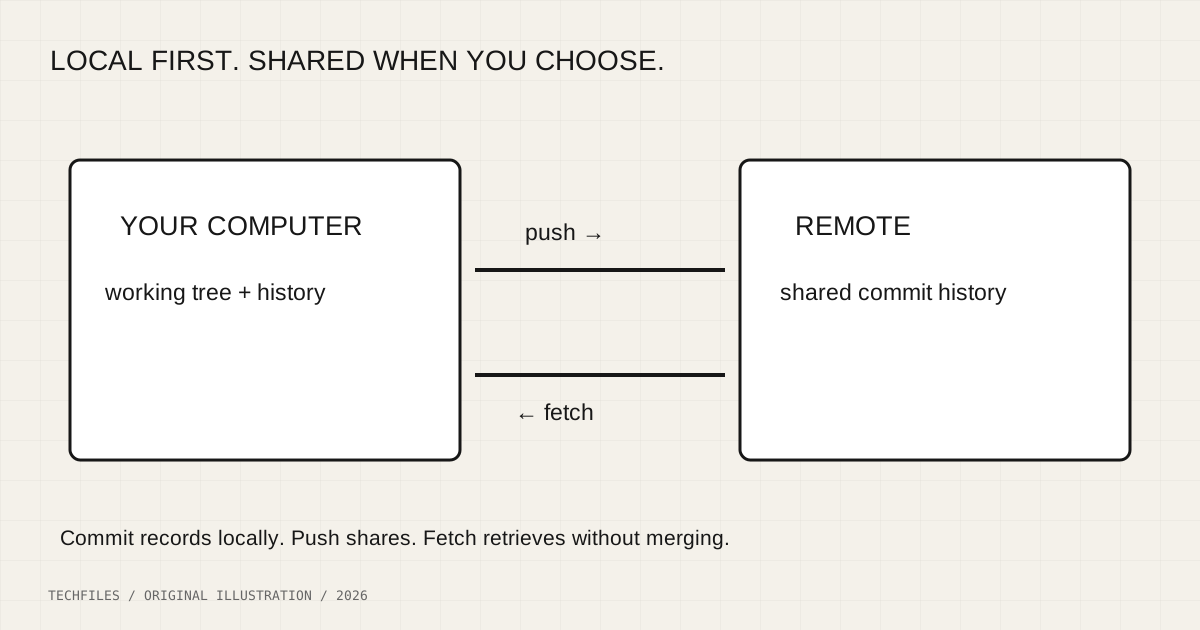
Create an empty repository with your chosen host. Replace the example URL with your own; use the host's documented authentication flow. Do not put tokens in commands or commit them into files.
git remote add origin https://github.com/YOUR-ACCOUNT/YOUR-REPOSITORY.git
git remote -v
git push -u origin main
origin is a conventional remote name. fetch downloads remote objects and updates remote-tracking references without integrating them into your current branch. pull fetches and then integrates according to its options and configuration. A conservative starting point is git pull --ff-only: it stops when the histories need a decision instead of creating an unexpected merge.
10. Undo the right thing
To unstage a file while keeping your working edits, use git restore --staged README.md after the repository has an initial commit. To discard unstaged changes in that file, git restore README.md restores the version from the index; that can destroy work you have not saved elsewhere.
To reverse an already shared commit, git revert COMMIT-ID creates a new inverse change. Replace COMMIT-ID with the actual identifier, review the result, and resolve conflicts if necessary. Avoid force-pushing or rewriting a shared branch while learning.
A command reference worth keeping
git status — understand the current state.
git diff — inspect unstaged tracked changes.
git diff --staged — inspect the next snapshot.
git add PATH — stage a chosen file or path.
git commit -m "Reason" — record the staged snapshot.
git log --oneline --graph --all — inspect the history graph.
git switch -c NAME — create and switch to a branch.
git merge NAME — integrate the named branch.
git fetch origin — retrieve remote history without merging it.
git push — share committed history with the configured upstream.
A small exercise, then a self-check
Download the practice pack, extract it into a fresh folder, and follow its README. Add the starter page, commit it, create a branch for a second topic, edit the page, review the diff and merge. The pack also includes a cheat sheet and a quiz with answers. Nothing runs automatically when you download it.
Before calling the exercise complete, explain these three differences in your own words: saving versus committing; committing versus pushing; and unstaged versus staged changes. If you can explain them, you have the foundations for a much calmer daily workflow.
Download the Git starter practice pack